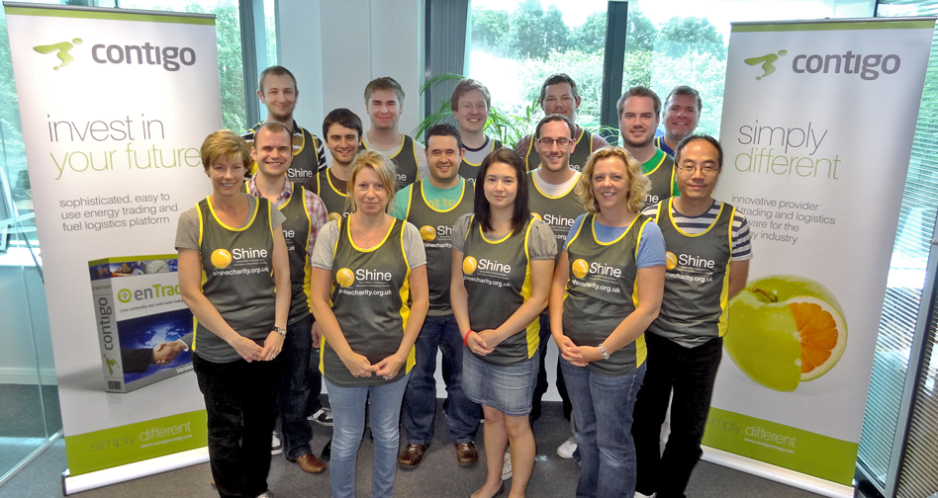
All members of Team Contigo completed the Blythe Valley Charity Run on Sunday 16th September 2012.
Most of us managed to complete the 5k, but two brave soles ran and survived the 10k. I myself ran the 5k and finished in a flat 35mins. This was enough to beat, but only just, my time from last year.
Thanks to every single person who gave us money for Shine our chosen charity. At time of writing this post we have managed to raise £918 for them. The link to our charity page is below if you want to help add to this total please visit and send us some cash to push us towards the £1000 mark! Thanks!
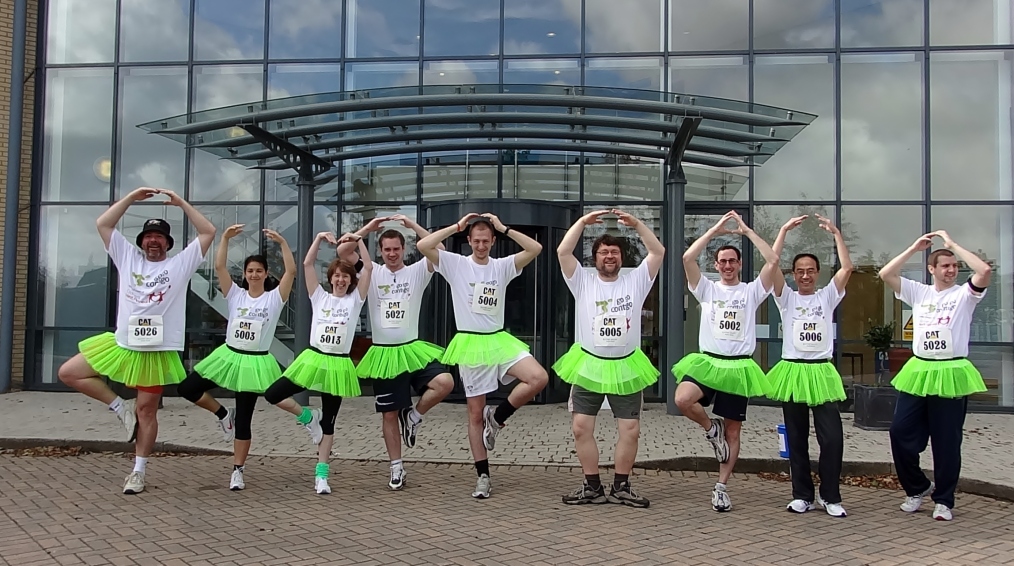
Last year myself and my work colleges ran the Blythe Valley 5k Fun Run to raise money for the Birmingham Children’s Hospital.
We managed to raise over £1000 dressing in fetching green tutus!
This year we are doing it again. There will be a few more of us taking part this time and we are running to raise money for a charity called Shine. http://www.shinecharity.org.uk/
I’m running the 5k again but we have some brave soles, also know as crazy fools, who are going to do the 10k. The run is on Sunday 16th September.
I managed to finish the 5k in an wholly unrespectable 35minutes last year. My aim for this year is to finish in…. well my aim this year is to finish in one piece, although I would like to beat my previous time I have so far done no training and have only 1 month to go.
I may need some encouragement, you maybe able to help with that. Our fundrasing page is below, go ahead have some fun, splash some cash, it’s for a good cause, which is encouraging me not to collapse and give up once I hit the wall about half a mile into the run!
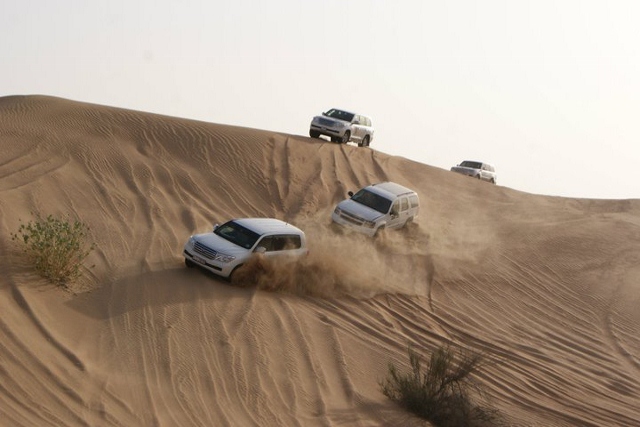
I think it’s time I started updating this a bit quicker. So this post will cover two of our days in Dubai, the first of which we spent in the desert and the second shopping and visiting the Palm Islands. On our 4th day in Dubai it was time to venture out of the urban jungle and into the desert. We booked a 4×4 desert safari for the day and were picked up from our hotel mid-afternoon and after about a 45 minute drive we arrived out in the middle of the baking hot desert. We stopped for a photo opportunity and a chance for our driver to deflate the types to help with grip across the desert sand.
We were then taken off road across the sand dunes for some dune bashing, which basically translates to driving quite fast across the sand and up and over the sand dunes. It was quite a bumpy ride but was very exciting. Our driver did his best to mount each sand dune at increasing speed which did nothing to help the stability of my camera as I tried to film the event.
We had a few stops along the way but no more than 10mins each time as the heat was quite unbearable. The final stop was at the desert camp, where there was buffet foot, a bar, and entertainment. This included sand boarding, which I was generally pretty bad at, camel riding, which we passed on as we had done that already when in Lanzarote a few years back.
Cecilia had a henna tattoo done, which is basically painted onto the skin in a nice pattern and when it dries it falls off and leaves ink stain on your arm in a nice pattern for a week or so until it washes off. Once the sun had set it got a lot cooler and we were able to sit outside in the starlight and enjoy the evening’s entertainment in the form of a belly dancing performance. Then it was back into the 4x4s and back to our Hotel.
Friday 3rd June 2011 – Mall of Emirates and Palm Islands
The next day we decided to check out the second of the massive super malls in Dubai, the Mall of Emirates. This was just as massive as the Dubai Mall we had been to the other day, and included just as many of the world’s big brand stores. The only difference really was the addition of Ski Dubai, the world’s largest indoor artificial ski slope. Although it would have been nice to give this a try we decided to pass on grounds of cost and being too much of a chicken to give it a try as neither of us had ever been skiing before. So having looked around and done some shopping we decided it would be nice to go have a look around the Palm Island, the manmade island built in the shape of a palm tree.
We got a taxi straight up the main road which runs the length of the palm island, basically the whole length of the palm tree, and went to have a look at the Atlantis Hotel. A very impressive building, it looks like something that would be very much at home in La Vegas. The hotel is guests only so we couldn’t go for a look around but the hotel does have an Aquarium that is open to the public so we went for a look around there. We decided after seeing the aquarium and the water park earlier in the week thought that it wasn’t worth paying for entry here. So we had a little look around and then decided to head home. We were planning to get a taxi back to the nearest metro stop but we found that there was actually a monorail that ran the length of the palm Island from the Atlantis hotel back to the main land so we got that and did some sightseeing from the monorail. However it was getting dark by that time so we had no luck with getting good views of all the expensive villas apartments on the island.
When we got back to the mainland monorail station we found that it had not yet finished being built so we had to find our way out of what was basically a building site and try to find a way back to the nearest metro station. That was not easy as the only way out we could find took us out to the main freeway through Dubai, with no apparent way to get across we had to instead do our best to flag down a taxi which we managed to do about 15 mins later. Apparently they plan to eventually connect the monorail to the main metro line, which would have been handy, but like a few things in Dubai it’s currently only planned, just like Trump Tower Dubai, which had its own monorail station on the palm island but all that was there was a big brown patch of empty land.
Wednesday 1st June 2011 – Burj Al Khalifa Viewing Deck and Wild Wadi Water Park
We would be retracing ours steps from yesterday and heading back to the Dubai Mall again to find the entrance to At the Top, the tourist viewing desk at the top of the Burj Khalifa, the world’s tallest building. Pre booking tickets for this is essential as they are limited and very popular, and cheaper if booked in advance. We had managed to pre-book some tickets from our hotel concierge the day before. Because we had booked our tickets for early in the morning, the first trip up of the day, we decided not to get the metro and save some time by getting a taxi, it would be cheap anyway and we would not have to rush to get ready. The entrance to the At the Top attraction is located in the ground floor of the Dubai Mall, by the ground floor food court. By the entrance in the gift shop is a nice scale model of the tower and then again inside the tourist lobby there is another and an interactive table top display with facts and figures and comparisons to other tall buildings around the world. Additionally there is a small display advertising the film Mission Impossible 4 with a director’s chair that has the Sheikh’s name on and some signed photos of a Tom Cruise lookalike climbing the outside of the building.
The trip to the top only takes a minute in a very stylish elevator which it pretty much pitch black apart from a few LCD screens and cool animated lighting effects along the walls. When you first see the view it is not that amazing, you mostly see lots of desert into the distance and after that mostly just haze. Once you start looking around through there are some very impressive views of Dubai’s new architecture, collections of skyscrapers and massive networks of roads. There is an outdoor observation deck that provides some better views with gaps in the glass screens where you can get some good pictures without glare from the windows. The only problem is it is so hot outside it is very difficult to deal with at that height, so we didn’t stay outside for very long. However it is outside that you realise that you are in fact not “At the Top”, you are in fact on the 124th which is 452m above ground. There are in fact 163 floors, the top one being 638m high, above that is just maintenance areas and the spire which stretches to the full height of 828m. So I was a bit disappointed that we didn’t actually get near to the real top, but it was higher than our previous adventures up tall buildings, namely the Rockefeller Centre in New York, which was 260m high.
We had a look around at the view, which is 360 degrees around so there is plenty to look at. On a clear day you would be able to see the Burj Al Arab hotel and the world and palm islands, however although the weather was perfect it was hazy so we couldn’t see far into the distance although we could just about make out the Burj Al Arab and see some of the world islands. The main sights were the many skyscrapers around Dubai, although they looked like small models from where we were. Looking directly down you could see the huge shadow cast from the building, and also we could see the Dubai Mall and the lake with the dancing fountain and the bridge where we stood yesterday to watch the fountain show, I think being up here would have been a much better view though.
The only other attractions at the top were a small shop and for some strange reason a gold vending machine, not just a vending machine that was painted gold, but a vending machine that sold gold bars. Sadly we couldn’t really afford to buy any to take with us and kicking it and checking the slot didn’t reap any rewards, so we decided it was time to head down to ground level again.
Once out we decided that we deserved some fun for the rest of the day so we took a taxi across to Jumeira, where you find the Burj Al Arab hotel and the Jumeira beach hotel along with the Palm Islands. But we weren’t interested in any of that today, we were here for the Wild Wadi Waterpark.
There are no pictures from our time here as I learned yesterday at the fountain show, my camera and water do not mix. So we decided to stick all our stuff in a locker and just have some fun. The park has a very cool system in place that means you don’t have to carry anything with you while in the park. At the entrance you buy a wrist band that also contains some sort of contactless technology which is used as your entrance ticket but it can also be loaded with as much money as you want to cover the cost of lockers, towel hire, food and drink while in the park, it’s very clever and saves a lot of hassle. Once we got changed we went to find the rides, this would have been easy except for one small issue, we were bare foot and the ground was hot, I mean very hot. So we were soon hopping around on tip toes from shade to shade, the annoying thing was that all the locals were strolling around no problem but I couldn’t touch the ground for more than a few seconds without my feet burning. Luckily there was plenty of shade and being a water park plenty of rides, and fountains and water falls splashing water all over the paths so in the majority of cases it was bearable.
We decided to enjoy some of the simpler rides first, such as a Flood River, a river that runs around the inside of the park, where you can ride rubber water rings along gentle waves. It was relaxing in the summer sun, but we thought it time to try something a bit more exciting. Next was the White Water Wadi, which was another river that went around the outside of the park however this one connected to something they called the Master Blasters. These were sections of water slides that contain fast moving water jets, so you went from riding a gentle river to being blasted along a water slide round corners and down hills at speed. Several sections split off into different paths of varying danger, and some routes even split in two so that two people could race down at the same time.
We had a great time and went round a few times before getting off and having another look around. One ride that had caught my eye was the Flow Rider, they have two of these in the park, they are basically massive wave machines that shoot out high pressure jets of water and it is then the riders responsibility to jump on a body board and try to ride this wave for as long as possible. The big one is situated right at the entrance and when we first arrived in the park we had spent several minutes watching people attempt to stay on this as long as they can.
It appears to be quite a competition as people compete to try and stay on the longest or do the most flashy tricks. Across the park is a smaller one that I thought it best to try out first since this would be our first time on such a ride. The queue was huge so it took a long time, but part of the fun was watching the people come and go before me, watching and learning to try and pick up any tips possible on how best to stay on the board. Once I actually got a go it didn’t last long, I stood at the top, board in front of me, leaned forward and pushed off onto the board and straight down to the bottom of the wave pool. I picked myself up tried again, this time I managed to ride the wave straight off the opposite side. Well it had to be third time lucky so placing the board carefully back on the water I leapt on and with my arms flat against the board I pushed up with my elbow and balanced myself. I managed to stay balanced in the middle of the wave machine for a little while before attempting to lean side to side and glide back and forth. Now after watching many people come and go before me I had noticed that the lifeguards were helping people out and showing them the correct technique to ride the wave. People would fall off once or twice and after a few times your go was over. Now some people really were good at it, and just didn’t fall off, and it was at this point the lifeguards would then decide that someone’s time was up, but instead of just telling them to get off they would encourage them to perform more and more skilful and dangerous tricks. First they would tell you to lean back, hold the board out in front of you, if you could do that they would then instruct you to push the board away and you were then suppose to catch it as the wave shot it back at you. This was enough to get a lot of people to fall and go tumbling into the back of the pool. So as instructed by the lifeguard I gave this a try, leaning back, holding out the board and pushing it away, I then had to react quick as it came shooting back at my face, but managed to catch it and board it again, twice more I managed this and was feeling quite good. So it was onto the next trick, this involved kneeling on the board, getting your balance and then with your arms out to the side you had to slap the water on one side spinning you 360 degrees around. This was more challenging, first getting onto your knees from a lying down position. Hold the board, and when you are ready bring your knees up quickly underneath you onto the board, then lean back into an upright position. I managed this, but only after the second attempt, the first I lost my balance and got back down onto the board quick just in time to stay on it. Once kneeling up though I managed to again lean side to side adjusting my weight to balance on the wave and move back and forth. It was then I decided I would give it a go, so put my hand into the water to my side and gave it a slap! I quickly spun around, my board was swept from under me, I face planted the wave and tumbled backward over the back of the pool and into the wall. Never the less it was pretty much the most fun ever. Cecilia took her turn after me and just as I did she went off the first time but got back on the second and managed to stay on a lot longer than me and generally proceeded to show off by finding her balance a lot quicker than me and pulling tricks on the board with ease. She did eventually fall off backward and into the wall just as I did but we had both really enjoyed the ride.
It’s a shame we had no pictures of our time at the park, some of the river rides did have photo points like you get on a roller coaster, but in all of the pictures we saw I pretty much had my eyes closed as for a good part of the day a combination of sun cream and very bright sunshine had really irritated them and meant I rode a lot of the water slides blind. There is a link to a website below that has some good pictures and video from the park to give you an idea of what it’s like. If you ever go to Dubai then I recommend this water park, it’s a lot of fun, I only wish the weather was good enough back in England for us to have a water park just like this.
The second day of our holiday in Dubai and we decided that the first thing to do when in Dubai would be to shop. So we decided to head directly to Dubai Mall, one of many of Dubai’s massive super malls. We headed out into the heat but only for a few minutes before we were back in air conditioned heaven within one of Dubai’s many shiny new metro stations.
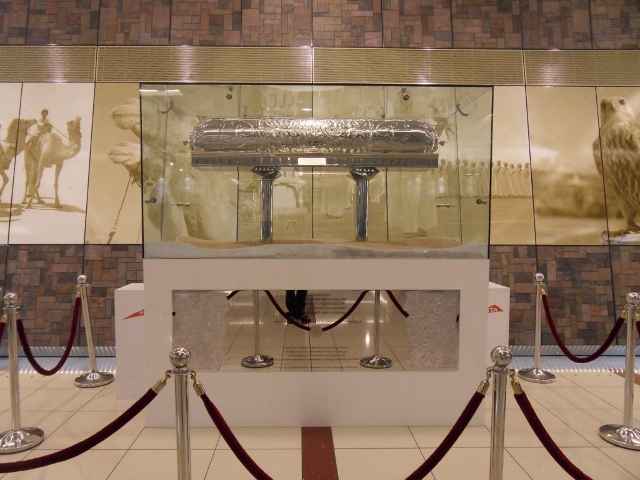
They are all built like lobbies of 5 star hotels with marble looking surfaces left right and centre, and at union Square, where we were boarding our train there was even a Time Capsule containing a message to the future from Sheikh Mohammed bin Rashid Al Maktoum himself. The metro is easy to navigate in Dubai, there is only a single line that runs east to west across the entire city and is imaginatively called the red line, although a second line that runs mostly through Deira north to south is currently under construction but has already been equally wonderfully named as the green line.
Once you have gone under the Creek the metro comes over ground and you follow alongside the route of Sheikh Zayed Road through the financial district of Dubai with its many new sky scrapers. It’s quite an experience riding the totally driverless automated metro trains, they are quite fast and smooth and since most of the track is raised high above the ground like a monorail you get great views as well and the every time we used them they were never crowded.
After a short trip we arrived at our destination, Dubai Mall metro station, which is actually not connected to the mall but just a short distance away. There is a connecting bus which you can ride for free if you hold onto your metro ticket, which uses a contactless card system similar to that used in London. It is here that we got our first view of the world’s tallest building the Burj Al Khalifa. Exiting the metro station it is the first thing you notice as it just dominates the skyline at 828m high and glistens in the desert sun. We stopped, as did pretty much everyone else, to take a picture or two before getting on the bus to the mall.
Once in Dubai Mall it is similar to any large shopping mall you have ever been in before, but like everything in Dubai it’s bigger. Comparing it to what I know best, the Bullring shopping centre in Birmingham, they are very similar internally with many similar shops, but the Bullring, according to Wikipedia has a retail space of 125,000sq meters and Dubai Mall, well that has a total of 3,770,000sq meters, plus Dubai Mall has a massive ice rink and also one of the world’s largest aquariums right in the centre and then there is Sega Republic a huge indoor theme park and a 22 screen megaplex cinema and at least two massive food courts with hundreds of choices from around the world. So maybe after thinking about it not quite that much of an easy comparison with the Bullring after all.
We spent some time looking around and exploring the mall, it’s quite easy to get lost in there simply because of the size of the place, but a long walk later we had found the food court and decided to take a break from our exploration and stop for lunch. The exploration hadn’t ended though as we entered the food court just like everywhere else the place was massive, it was probably about 20mins to walk around the whole court taking in the selection of world food choices, including places such as western brands like Taco Bell, McDonalds and Pizza Hut, but we finally picked our choices and took a break.
We continued our hike around the mall, finding along the way the indoor ice rink and water fall before we discovered the malls centre piece, the Aquarium. It was two floors high with apparently the world record for the largest acrylic panel at 38m x 9m. It’s very impressive and the range of aquatic creatures on display was numerous, there were hundreds of fish, and at least a dozen different sharks and stingrays.
The aquarium included an underwater tunnel which we decided to pay to explore, and it was worth it because once you go inside you get an amazing view from inside and actually get to see a lot more of the larger sharks which were hiding in the shadows of some of the larger rock formations within the tank, there were even a couple taking a sneaky rest on the roof of the glass tunnel.
The admission to the aquarium also includes admission to the zoo which is a few floors above after you exit the aquarium. Here there are a lot more aquatic wildlife to view, including turtles, beavers, friendly penguins and some very interesting looking crabs. There was even a tank full of all the varieties of fish from the film Finding Nemo to keep the kids happy, these though as with all Hollywood celebrities were difficult to photograph as they wouldn’t bloody stay still so all I have on film are orange and blue blurs.
There were a few other interesting and slower fish to take pictures of though including a display of live fish eggs, all lined up in order of age, the clever thing being that the type of eggs on display were transparent so you could see the embryo in each stage of its development, very fascinating indeed, although slightly worrying when you think they are on public display but Dubai Mall claims to follow International Standards of Ethics and Animal Welfare Policy so I do hope that these baby celebrity fish are well cared for.
Once out of the Aquarium there was chance to browse a few more shops, and then it was time to head outside to catch the live dancing fountain performance. This is outside on a manmade lake at the base of the Burj Khalifa. When you exit the mall out towards the fountain the view that greets is spectacular with the Burj Khalifa towering over the area and the massive manmade lake stretching out before you like an endless hotel swimming pool.
Across the lake over a nice little bridge is a small shopping area with some souq type markets, here we were able to get some souvenirs and a professional photograph of the both of us taken in front of the lake with the Burj Khalifa in the background, which was nice to have since my camera had struggled to get a quality night time picture of the scene. That was possibly due to the amount of water that may have gotten into the lens after taking a video of the dancing fountain, not sure my camera is water proof in anyway, but it did survive, although took a while to clear the lens of water droplets to be able to take some clear photos again. However the dancing fountain was delightful, designed by the same people who did the fountain outside the Bellagio Casino in Las Vegas, every half an hour after dark you can see a 10 minute performance of the fountains dancing across the lake to a musical background.
By the time we had finished watching the fountain and looking around it was 10pm and the mall was closing so we found our way back to the shuttle bus stop and got the bus back to the metro stop. However this is when we discovered that the 2 min trip from the metro to the mall this morning was not the same route back, the bus goes on a loop around the down town Dubai area and another 20mins later we reached the metro stop. By this time however we had missed the last metro back to Diera as the last train each evening is about 11pm. So this meant our first chance to try out a local taxi
The officially licenced taxis are easy to spot, all cream with different coloured roofs denoting the different taxi company, although they are all identical and charge the same standard rate. 10 dirham (£1.60) is the starting rate and will get you a reasonable distance, I don’t remember paying more than 30 dirham for a taxi and we covered some long distances in our time there. So we got the taxi back to our hotel, the drivers pretty much all speak English, although when I asked to go to the Radission Blu there was some confusion over which one as there was apparently at least two but after some slightly misunderstood discussion we were reasonably confident the driver knew where we wanted to go.
It’s at this point that I really felt the loss of the use of my smartphone. I had removed the sim card on landing in Dubai to prevent any chance of any data use that could rack up a huge bill on my return. But it was right now that I wanted to whip out Google Maps and track our progress via GPS just to reassure myself we were at heading the right way. Dubai isn’t a complicated place though, you can basically go west to the financial districts and east toward the creek and Diera. It’s difficult to tell if you’re heading in the right direction based on the scenery as it is basically all identical skyscrapers, dessert and motorways wherever you look but I soon spotted a sign for Diera and the bridge over the creek and was more reassured we were heading in the right direction and it wasn’t long before we were back at our hotel. We left the driver a nice tip as a personal thank you for not taking us to the wrong hotel and that was then the end of our second day in Dubai.
This is the start of my day by day blog recounting the events of my recent 4-week holiday to China including a stopover in Dubai. I mainly want to write down my experience for my future reference but thought however boring it may be nice to share my point of view as well, hence this blog.
I plan to write a blog post per day of my vacation, although they won’t appear on here on a daily basis as I’m often busy or just too lazy for that sort of commitment.
And so we begin. Our flight from Birmingham left on the evening of the 29th of May and we arrived in Dubai 7 hours later in the early hours of Monday 30th May local time. The flight was comfortable but the inflight entertainment system was broken so it was a very boring flight, attempting to get some sleep was unsuccessful as sleeping on a plane is not really something I have got the hang of, although it was no problem for Cecilia as she pretty much slept the entire flight.
Arriving in Dubai is an experience in itself. The view from the plane was spectacular, mostly sea as you approach but circling the airport you get a view of the endless desert and then in the distance some idea of the scale of the modern development of the city with skyscrapers and endless apartments coming into view. Once you land and taxi past the massive Emirates terminal at Dubai airport it impresses again with its scale and stunning design. Inside it is equally impressive, on arrive when you walk into the immigration control and baggage collection the scale of the place is beyond belief. The only thing I could think of to compare the scale to was thinking back to the Lord of the Rings and the scene in the film where Gandalf confronts the Balrog in the Mines of Moria with the massive high roof and the endless columns. I was impressed and had not even left the airport.
We had booked an airport transfer to our hotel so once we left arrivals there was a guy waiting for us. Now I was expecting a taxi or small mini bus as we have had previously on holidays when we have used the airport transfer service. However in this case we were ferried to the hotel in a brand new executive Lexus, nice extra gold star for our hotel on that one. Our hotel was a very short ride from the airport into Deira City Centre, which is the eastern side of the Creek.
Our hotel was the Radisson Blu Deira Creek, a stunning hotel with helpful staff and quality rooms, all with a brilliant view over the Creek. Our room was nice, was a bit surprised when we entered the room and the TV came on and the default channel was the Hotels own channel showing all their hotels around the world and on the screen was the Radisson Blu from Birmingham made me feel so much at home.
Another nice feature in the room, along with the comfy bed and nice views was sitting on the bed next to the hotel information and restaurant guide book, it was of course the pillow menu, which included 4 different types of pillow you could order if you didn’t like the ones provided, we however quite liked the big comfy pillows they had provided so had no need to order for this additional menu.
After breakfast at the hotel we decided to go out and have a look around. This was when we really got to a chance to face the heat head on. The week we were in Dubai the average temp was around 40 degrees Centigrade and walking out of the nice air con environment of the hotel the heat is like a brick wall hitting you as you step out the door. It takes some getting used to and even then spending more than 10 mins outside at a time is hard going, but you get used to it and it is just about bearable if you try not to think about it too much and drink plenty of water.
Since we only just arrived that morning we decided not to do anything much on the first day apart from exploring the area around the hotel. This included finding the local metro station, which was a five minute walk from the hotel and would be our main route to the big attractions later in the week across the western side of the Creek.
Our next stop was to take a trip across the Creek in a water taxi, of which there are two types, the first is the government transport network water bus, which is a modern water taxi with air con, with the other choice being the local Abra, these are also water taxis but are small traditional wooden boats and are defiantly the way to go as they are used by all the locals and only cost 1 dirham which translates to 0.20p per trip and are just much more fun to ride.
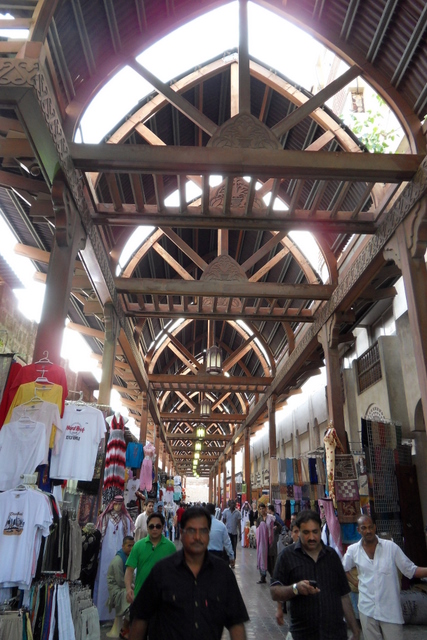
We took an Abra across the Creek from Al Sabkha to Dubai Old Souq. The old souq is where the fabric and spice souqs are, and also the Dubai Museum is just round the corner from here, which we would be back to visit later in the week. For the moment we had a browse around the souq but didn’t stay too long, it’s nice to see a traditional market like this but it gets boring really quickly after the 100th seller tried to sell us something we didn’t need or corral us into their shop.
One we did look in was a fabric shop and Cecilia was actually interested in some table cloths and cushions but couldn’t find the combination of colour and pattern she wanted, but the shop assistant didn’t let up. We were offered a table cloth for 250 dirham originally but as we left the shop they followed us and the price kept dropping and as we disappeared into the distance the last price that was shouted after us was 20 dirham, quite an impressive discount but we still decided to pass. It was quite a fun experience but we decided to head back to the Creek and get another Abra back to our hotel to plan the rest of the week.
And that was the end of the first day of our holiday, only about another 25 to go. All the places we visited during our holiday will be blogged about but I also plan to add locations to this Google Map, which will be nice to se once completed as I update these blogs.
Total Annihilation was one of my most played games in early 90’s back when I used to play a lot of PC games. An RTS game similar in style to Command and Conquer, it was a grand space si-fi battle of the future between two machine races. Although the game was praised for its playability, scale and balance, plus the fun of blowing lots of stuff up with Nukes, it also had a very good soundtrack.
Composed by Jeremy Soule the soundtrack would change to match the pace of battle. So there were some slow paced background tracks while you built up your armies and searched the battle field for the enermy and then some much faster paced and grander tunes during battle. Some standout tracks for myself were the perfectly name “Attack!!” and “Brutal Battle” tracks that would up the tempo of the music while in the heat of battle. Some of the other tracks such as “Licking Wounds” and “On Throughout The Night” have a gentler pace and an eerie alien type vibe to them, which represents better some of the landscapes of the battle ground you fight in.
I don’t know if the soundtrack is available to buy anywhere, I recommend it if you can find it, otherwise it is available to listen to on GrooveShark, link provided below. Look out for more recommended video game sound tracks in future, although they won’t be full blown reviews as I’m no music expert, just my simple thoughts on some of my favourites that help me survive a hard days work.
The main theme song from this by Lisa Miskovsky is a really memorable tune and gives the game a real unique feel to it. I especially like the cool piano melody which is really catchy. The rest of the album has some interesteing remixes of the song as detailed below. This isn’t a proper review or anything as I’m no music expert just my thoughts on which ones I liked and which I didn’t.
Armin Van Helden – Not really what I would call normal remix of the orginal song, more like he dropped the oringal song on the floor, smashed it into a million pieces then tried sticking it all back together with crazy glue. At least it is the most adventurous of all the remixes on this album.
Paul Van Dyk – Much more of a traditional remix, doesn’t mess around with the lyrics but does add a fresh new exciting dance beat to it that really sounds good.
Benny Benassi – More of a traditional dance track with parts of the Original Still Alive song and lyrics mixed into the middle. Much more of a new track than a remix of the orginal but still very good and mixes in parts of the original very well.
Junki XI – More of a chilled version, with a relaxed tempo but still retaining the classic piano section which in itself is actually quite chilled out anyway, so fits in here really well.
Teddybears – Is probably closest to the orginal with just a hint of a dance remix to it to give it a mroe upbeat tempo and dance style.
Edit [January 2011] – Spotify have removed the above album from their system which is a shame, I guess you will have to find it from somewhere else to listen to it. However they have now uploaded the Mirrors Edge Original Soundtrack by Solar Fields which includes the Original and Instrumental versions of Still Alive. and you can listen to it via the link below. Enjoy.
Just been listening to the new Gorillaz album – Plastic Beach. I have been a fan of Gorillaz since the first album almost 10 years ago now. Have to say this new one isn’t as good as that first album, and probably not quite as good as Demon Days either. In my opinion there are just not enough standout tracks, apart from Stylo.
Plus the other annoying thing is the number of tracks featuring generic rapper types that just spoil most of the songs for me, White Flag standing out as one of the worst.
There are some songs that I like which are more like what you would want from the Gorillaz such as Empire Ants, Some Kind of Nature and Pirate Jet.
Overall its sitll a good album, enjoyable to listen to, and its always nice to have more from the Gorillaz, one of the most unique and interesting bands around.
I just recently got an iPhone and was shocked to find no simple way to use an MP3 file as a Ringtone. That was until I ad a look around online and found that there is a way to do it, and it’s not too complicated either.
1) In iTunes find an MP3 file you want to use.
2) Select the file, then right-click –> GET INFO and select the OPTIONS Tab.
3) Check the Start and Stop Times checkboxes and change the times so that you have the section of the MP3 you want to have as your ringtone. Make sure the length is less than 30 seconds or this won’t work. When you change the Start and End Times and click OK button you can go back to the MP3 file in iTunes and play it to see if it is what you want.
4) The section you pick must be less than 30 seconds!!
5) Once you have a section of the MP3 that is less than 30 seconds that you like, select the file and right-click –> Create AAC Version or Convert to AAC. This will create a second file under the existing MP3 in iTunes.
6) Select the new smaller file and delete it from iTunes, but make sure you then click the KEEP FILE button!
7) Go to the Original MP3 file location on your computer, probably in the iTunes Music folder.
8)You should see the new smaller file we created, with a file extension of .M4A rename this to .M4R
9) Open the .M4R file and it should automatically open iTunes and place the file in your ringtones library.
10) Now you can sync to your iPhone and the ringtone should appear in your ringtones menu.
I have listed out the steps in detail so it’s actually much quicker and simpler than it looks. This means that you can use any MP3 file for a ringtone now, and not that you can select exactly what section of the MP3 to use very easily.









 Welcome to Matt's Blog, Please Keep to the Posted Speed Limit